
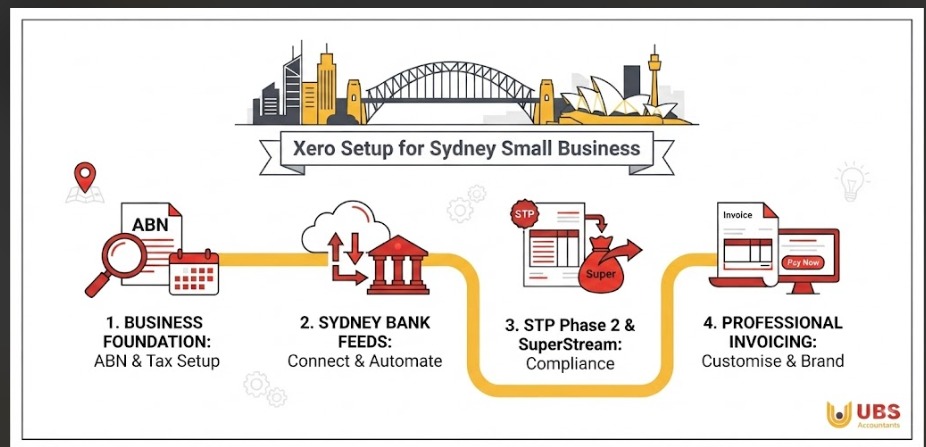
Streamline your Sydney business finances with this complete Xero setup guide. Learn cloud bookkeeping, bank feeds, and ATO compliance to save hours every single week.
Mastering Xero Setup for Sydney Small Business Owners
Field-based operations like sub-contractors and site managers require specific mobile job tracking, similar to tailored trades and construction bookkeeping solutions.
Managing finances shouldn’t keep you up at night. Whether you are running a boutique café in Surry Hills, a retail shopfront in Parramatta, or a digital agency in North Sydney, keeping your books accurate is the lifeblood of your enterprise. Traditional desktop accounting is rapidly fading, replaced by agile cloud platforms that give you real time visibility over your cash flow.
Among these platforms, Xero stands out as the premier choice for Australian entrepreneurs. However, a rushed or incorrect configuration can lead to messy reconciliations, tax errors, and compliance headaches with the Australian Taxation Office (ATO).
This comprehensive guide walks you through a proven framework to configure your account from scratch, integrating local requirements like SuperStream and STP Phase 2 seamlessly. If you prefer expert oversight to ensure your configuration aligns with local tax laws, partnering with a qualifiedxero setup Sydney accountantcan save you countless hours and prevent costly setup mistakes.
Why Xero is the Gold Standard for Sydney Enterprises
Operating a business in New South Wales comes with unique regulatory demands, from Goods and Services Tax (GST) reporting to strict payroll obligations. Transitioning to a modern cloud architecture allows business owners to access bank grade security, collaborate seamlessly with advisors, and automate repetitive administrative chores.
For a deeper dive into why cloud platforms dominate the local market, explore this analysis oncloud bookkeeping sydney. By shifting your general ledger to the cloud, you eliminate version control issues and enable remote management from your phone or laptop while on the go across Greater Sydney.
Step 1: Account Foundation and Organisation Details
Your first step inside Xero Cloud Accounting requires entering precise legal and financial identifiers. Accuracy here dictates how your reports, invoices, and tax obligations appear down the track.
- Organisation Profile: Navigate to Settings > Organisation details. Enter your exact registered business name, trading name, and Australian Business Number (ABN).
- Financial Year Settings: In Australia, the financial year runs from July 1 to June 30. Ensure your financial year settings reflect this standard Australian cycle.
- Tax Settings: Enter your GST registration status. If your projected annual turnover exceeds $75,000, you must register for GST. Set your tax period to either monthly or quarterly depending on your BAS reporting cycle.
- Base Currency: Confirm that your base currency is set to Australian Dollars (AUD) to maintain consistency with local banking institutions.
Selecting the correct entity type during account setup depends heavily on your company structure for liability protection and tax efficiency goals.
Step 2: Chart of Accounts Customisation
Clean bookkeeping throughout the year directly simplifies preparing your ATO end of year tax write offs when EOFY arrives.
The Chart of Accounts (COA) is the backbone of your financial ledger. While Xero provides a standard Australian template, every Sydney small business has unique revenue streams and operational overheads.
- Review Default Codes: Delete or archive accounts you will never use to keep your financial reports clean and readable.
- Tailor Revenue Streams: Create specific tracking categories or revenue accounts if you operate multiple locations or service lines across Sydney.
- Align with BAS Labels: Ensure asset, liability, equity, income, and expense accounts map correctly to your Business Activity Statement requirements.
For foundational strategies on setting up your ledger correctly during your first year of operation, consult this comprehensive online-accounting-for-small-business-2026-beginners-guide/.
Step 3: Bank Feed Integration and Automated Reconciliations
Setting up separate bank feeds for business operations and commercial premises helps track investmentproperty depreciation tax claims with complete accuracy.
Manual data entry is prone to human error and consumes valuable time that could be spent growing your enterprise. Setting up secure data feeds bridges your business bank accounts directly with your software.
Bank Feed Integration Guide
Most major Australian financial institutions including CBA, Westpac, NAB, ANZ, and Macquarie offer direct digital feeds into Xero.
- Navigate to Accounting > Bank accounts.
- Click Add Bank Account and search for your financial institution.
- Follow the secure login prompts to authorise the connection.
- Select the date from which you want historical transactions to import (typically the start of your current financial year or GST period).
Once connected,automated bank reconciliation rules match your incoming customer payments and outgoing supplier expenses to corresponding invoices and bills automatically. Over time, Xero learns your spending patterns, allowing you to reconcile dozens of transactions with a single click.
Step 4: Configuring Payroll and ATO Compliance
Managing super contributions alongside personal retirement portfolios requires strict adherence to selfmanaged super fund tax rules to avoid ATO audit triggers.
Employing staff in New South Wales requires strict adherence to modern awards, superannuation guarantees, and single touch payroll reporting.
STP Phase 2 Reporting Cheat Sheet
Automating pay runs in Xero ensures complete compliance with ongoing PAYG withholding tax rates and quarterly lodging deadlines.
ATO Single Touch Payroll (STP Phase 2) mandates that employers report disaggregated payroll information to the tax office every time staff are paid.
- Connect Software to the ATO: Before lodging, you must notify the ATO of your software provider ID. Call the ATO or use Access Manager to link Xero using your Software Provider ID.
- Setup Employee Profiles: Input complete tax file number (TFN) declarations, residential addresses, bank details, and employment basis (Full time, Part time, or Casual).
- Configure Earnings Rates: Categorize ordinary hours, overtime, allowances, and paid leave correctly to satisfy STP Phase 2 breakdown rules.
- SuperStream Compliance: Set up automated superannuation clearing house integration. Under Australian law, contributions must be paid at least quarterly, though many local employers choose monthly cycles to maintain healthy cash flow.
Ensuring your xero single touch payroll setupis error free protects your business from ATO penalties and ensures your workers’ entitlements are recorded accurately.
Step 5: Customising Professional Invoices and Payment Services
First impressions matter. Your invoices should reflect the professionalism of your brand while making it effortless for clients to pay you.
- Branded Themes: Upload your high resolution logo, set your primary brand colors, and customise payment terms (e.g., Net 7 or Net 14).
- Payment Gateways: Integrate payment services like Stripe, GoCardless, or PayPal directly into your digital invoices. Allowing clients to pay instantly via credit card or direct debit drastically reduces your Days Sales Outstanding (DSO).
- Automated Reminders: Configure polite payment follow ups to trigger automatically a few days before and after an invoice due date.
To ensure your financial ecosystem is optimized for growth and fully compliant with Australian regulations, reach out to our professional advisory teamtoday for tailored guidance.
Conclusion
Setting up Xero correctly lays a rock solid foundation for your enterprise, transforming administrative chores into streamlined, automated workflows. By carefully configuring your chart of accounts, activating secure bank feeds, and complying with ATO payroll mandates, you gain the financial clarity needed to make confident business decisions. For more insights and expert support tailored to your enterprise, visit UBS Accountants.
Once your ledger is fully optimized, pairing real-time reporting with outsourced Virtual CFO guidancegives you the high-level cash flow forecasting needed to scale.